1
Summon Ripple
Press Control + Option + Space. The puck appears exactly where you left it, even across a multi-monitor setup.
Mac utility
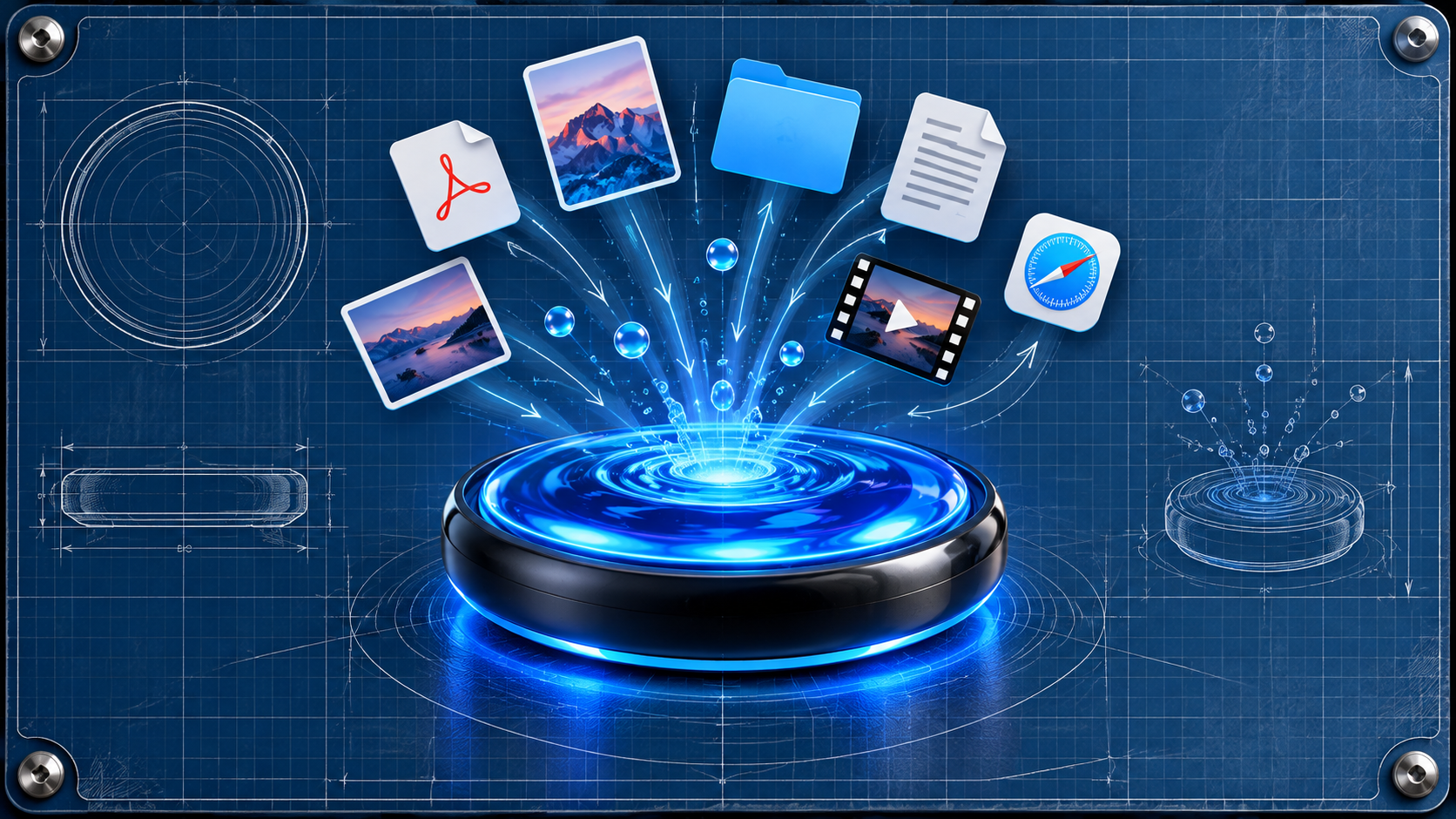
Summon it. Drop something on it. Watch it go. Ripple turns copying files into one fast, strangely satisfying Mac interaction.
The whole workflow
Ripple is deliberately simple. It stays out of the way until you call it, then gives you one obvious place to send whatever you are working with.
Press Control + Option + Space. The puck appears exactly where you left it, even across a multi-monitor setup.
Files, folders, images and other Finder items can all be dropped directly onto the puck. Ripple copies them to your chosen destination.
Successful drops trigger Ripple’s pressure-wave particle blast — complete with configurable confetti, a custom-built soundscape and a calm confirmation at the center.
Why it works
Ripple is more fun than a normal drag-and-drop destination because it feels like an object on your desktop. Put it where you want it, use it repeatedly, then dismiss it when you are finished.
The puck is summoned globally with Control + Option + Space. The same shortcut dismisses it when you are finished.
Drag Ripple anywhere on your desktop. It remembers its position, supports multiple monitors, and stays constrained to visible screen space.
After a drop, Ripple briefly shows how many items were sent and the destination, then quietly returns to its idle state.
Ripple copies your files instead of moving them. The originals remain untouched, making the interaction fast and low-risk.
Ripple’s soundscape can be switched off at any time in Settings. When it is on, the audio follows the interaction from first approach through the final fading debris.
Confetti intensity
Ripple’s particle blast is part of the product. You can keep it restrained, use the balanced default, or let it completely misbehave.
Custom soundscape
Ripple’s audio was built for Ripple, one layer at a time. The puck begins with a low steady hum as it senses an incoming drag, collapses inward with an implosion on release, then opens into a deep pressure-wave sequence timed to the visual blast. Debris crackle and delayed zingers arrive afterward like pieces escaping the explosion.
Finished like a Mac app
Ripple keeps the interaction fun without turning the rest of the app into a toy. Its menu bar and Settings window provide a quiet home for the controls you actually need, including confetti intensity, Sound Effects, Launch at Login and puck position.
Show or hide Ripple, choose the destination, open Settings, view About, or quit the app from one simple menu bar control.
Optional Launch at Login means Ripple can be ready whenever your Mac is, without requiring another manual startup step.
Ripple works locally on your Mac. There is no account, cloud workflow, subscription or online service required to copy your files.
Pick one folder. That is where Ripple sends copies. No routing rules, automation trees or complicated file-management modes.
Ripple for Mac
A focused little Mac utility that turns a routine file copy into something you can see, hear and actually enjoy doing.
Download Now